





By Jim Shimabukuro (assisted by ChatGPT)
Editor
Summary: Linux is no longer a hobbyist escape hatch; in 2026 it looks like a credible Windows alternative as user frustration, gaming support, and desktop polish finally converge. It matters because the next OS shift may happen gradually, but once ordinary users stop treating Windows as the default, Microsoft’s moat starts to crack. –Perplexity

Introduction: How close is free desktop Linux to a Windows 10/11 experience in July 2026? For a web-centered home computer, the free alternative is no longer a science project. The remaining gap lies in Windows-only software, premium streaming quality, specialized hardware, and a few installation hazards. This article has been prepared as a practical guide for everyday PC users.
The Windows 10 moment has made the question urgent
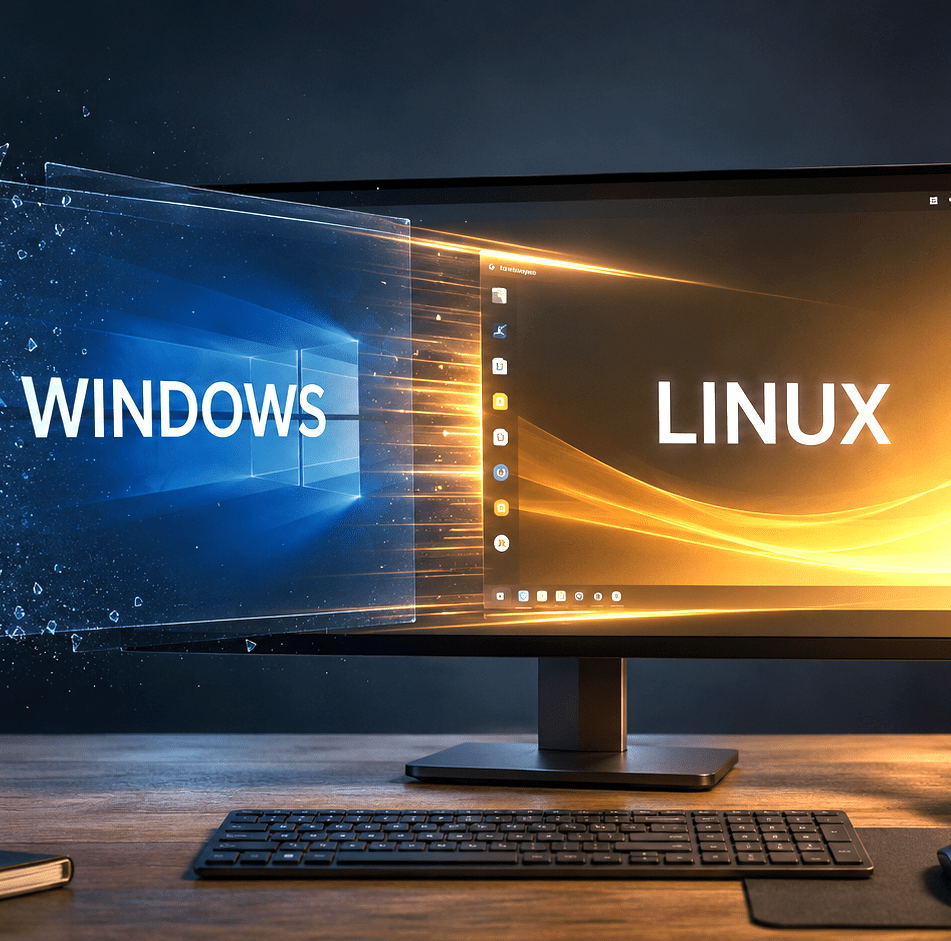
Windows 10 reached the end of ordinary support on 14 October 2025. It still runs, of course, but Microsoft no longer treats an unenrolled Windows 10 installation as a normally supported platform.[1] Microsoft now offers eligible consumers Extended Security Updates through 12 October 2027, which buys time but does not solve the problem of an otherwise serviceable PC that Microsoft considers unsuitable for Windows 11.[2] That is the opening for desktop Linux: not a clone of Windows, and not a way to run every Windows program, but a mature graphical operating system that can keep many Intel- and AMD-based PCs useful for years.
The phrase “Linux operating system” can be misleading. Linux is the common core; a distribution packages that core with a desktop, installer, update system, drivers, and applications. The average user should not begin by comparing scores of distributions. The sensible question is narrower: Which free editions have a polished installer, a familiar desktop, long-term updates, a graphical app store, and enough users that help is easy to find? Four stand out.
Four versions worth putting on an ordinary PC
| Edition | Best reason to choose it | What feels familiar | Security updates | Safe download |
| Linux Mint 22.3 Cinnamon | Best all-around first choice | Start menu, taskbar, tray, conventional file manager | To April 2029 | Official Mint page |
| Zorin OS 18.1 Core | Gentlest transition from Windows | Polished Windows-like layout and appearance controls | To June 2029 | Official Zorin page |
| Kubuntu 26.04 LTS | Most Windows-like flexibility | KDE Plasma panel, launcher, tray, desktop widgets | To April 2029 | Official Kubuntu page |
| Ubuntu 26.04 LTS | Largest documentation and support footprint | Graphical throughout, but its GNOME workflow is less Windows-like | To May 2031 | Official Ubuntu page |
Practical target for any of the four: a 64-bit Intel/AMD PC, an SSD, and 8 GB of RAM. Four GB can work, but today’s browser tabs—not Linux itself—will usually be the limiting factor.
1. Linux Mint 22.3 Cinnamon: the safest default recommendation
Linux Mint is the easiest answer to the question, “What should I try first?” Version 22.3 “Zena” is the current long-term release, and its Cinnamon desktop uses the habits Windows users already have: an application menu at lower left, pinned programs, open-window buttons, a system tray, ordinary desktop icons, and a file manager that does not try to teach a new philosophy.[3] Mint 22.3 is supported until April 2029.[4] The free Cinnamon edition is available only from Mint’s official download page and listed mirrors.[5]
Mint is unusually complete at first boot. Firefox, LibreOffice, media tools, a graphical Software Manager, an Update Manager, a backup utility, and Timeshift system snapshots are presented as ordinary desktop applications. The user normally installs programs by searching the Software Manager and clicking Install. Hardware drivers can be handled through Driver Manager. For the browsing, email, YouTube, TikTok, Instagram, Netflix, document, and printing routine described in this article, Mint is the strongest blend of familiarity and restraint.
There is one timely warning for older mobile workstations and gaming laptops. Mint’s own release notes say the 6.14 hardware-enablement kernel in versions 22.2 and 22.3 can conflict with old NVIDIA cards that require the legacy 470 driver; Mint recommends 22.1, with its 6.8 kernel, for affected machines.[4] A Lenovo W540-class laptop with its original Quadro graphics is exactly the sort of machine that should be tested from the live USB before installation. If graphics, brightness, or suspend misbehaves, do not assume Linux as a whole has failed; try the distribution’s compatibility mode or a release using the older supported kernel.
2. Zorin OS 18.1 Core: the most reassuring first afternoon
Zorin OS is built for people leaving Windows or macOS, and it makes that purpose visible. The free Core edition supplies a carefully finished desktop, a Windows-like panel and menu, an appearance utility, a graphical software store, LibreOffice, and tools for connecting an Android phone. Zorin OS 18.1, released 15 April 2026, is based on Ubuntu 24.04 LTS, uses kernel 6.17, supports 64-bit Intel and AMD processors, and receives updates through 1 June 2029.[6,7] The safe download is Zorin’s own site; choose “Core,” not the optional paid “Pro” edition, unless its extra layouts, applications, and installation support are worth the price to you.[8]
Zorin’s main advantage is emotional rather than technical: it lowers the sense that the computer has suddenly become foreign. A person can find applications, files, Wi-Fi, sound, power controls, and settings by ordinary visual inspection. Its optional Windows App Support can run some Windows programs through Wine, but “some” matters. It should be treated as a convenience for a lightweight legacy program, not as a promise that Microsoft Office, Adobe products, tax software, or a specialized business application will behave exactly as they do on Windows.
3. Kubuntu 26.04 LTS: familiar, powerful, and highly adjustable
Kubuntu combines the Ubuntu base with the KDE Plasma desktop. Plasma looks immediately intelligible to a Windows user: launcher, bottom panel, task manager, notification area, file manager, desktop folders, and a Settings application with almost every adjustment exposed graphically. Kubuntu 26.04 LTS was released 23 April 2026 and receives security updates and critical fixes through April 2029.[9] Its official download page clearly separates the current 26.04 LTS image from short-lived interim versions.[10]
Kubuntu is the best choice here for someone who enjoys adjusting the taskbar, window behavior, themes, shortcuts, or multiple-monitor layout. That abundance can also make its Settings screens busier than Mint or Zorin. Day-to-day use remains graphical: Discover installs applications and updates; Dolphin manages files; LibreOffice handles documents; and Firefox or Chrome handles the web. Because it shares Ubuntu’s foundation, most Ubuntu instructions apply even when the screen looks different.
4. Ubuntu 26.04 LTS: the mainstream reference point
Ubuntu is the name hardware vendors, software publishers, and help pages are most likely to recognize. Its installer is explicitly written for first-time users, and Canonical says the default choices produce a usable installation without deep technical knowledge. The official installation guide calls for at least 25 GB of storage and recommends an 8 GB or larger USB drive; for comfortable daily browsing, this article recommends 8 GB of RAM and substantially more than the bare storage minimum.[11] The LTS release receives standard security maintenance through May 2031, the longest standard window in this group.[12] Download the Desktop image from Ubuntu itself.[13]
Ubuntu’s GNOME desktop is polished but less like Windows. The application dock sits at the side by default, the Activities view organizes windows and applications differently, and the desktop is intentionally spare. None of this is difficult, but it asks for a few days of new muscle memory. Choose Ubuntu when the broadest documentation, the longest standard support window, and the clearest official installation guidance matter more than a Windows-like appearance.
What an ordinary day actually looks like
For everyday activities, the browser has erased much of the old operating-system divide. News sites, YouTube, TikTok, Instagram, Facebook, webmail, banking, shopping, ChatGPT, Google Docs, and Microsoft 365 for the web run in a current browser. Firefox is already present on most of these systems; Google Chrome can be downloaded from Google if a site behaves better there. Web applications can be pinned to the panel or installed as app-like shortcuts, so Outlook, Gmail, Instagram, or a newspaper can open in its own window.
Netflix works, but this is where a small print item becomes visible. Netflix officially supports recent Chrome, Firefox, Edge, and Opera versions on some GNU/Linux computers, yet it does not guarantee every Linux configuration. Its current table caps Chrome, Firefox, and Edge on Linux at HD 720p, while Opera may reach Full HD 1080p. Windows can reach higher resolutions under qualifying conditions.[14] For a laptop screen this may be acceptable; for a large 4K monitor, it is a genuine reason to retain Windows or use a streaming device.
Email is straightforward. Gmail, Yahoo, iCloud Mail, and Outlook.com work through the browser. Thunderbird and other desktop mail clients are available from the software store. Microsoft expressly says Outlook.com works in Firefox and Chrome on Linux, while warning that some features may be unavailable.[15] The warning is typical of Linux in 2026: the main task works, but a proprietary service may reserve a few polished extras for Windows or macOS.
Documents require a more careful distinction. LibreOffice is a capable, free desktop suite and can read and write Word, Excel, and PowerPoint formats. The 26.2 line, released in June 2026, includes current OOXML export and continued compatibility work.[16] Simple letters, reports, school papers, tables, and ordinary spreadsheets usually travel well between LibreOffice and Microsoft Office. Complex Word layouts, tracked-change workflows, specialized fonts, elaborate PowerPoint animation, Excel macros, Power Query, and corporate templates can shift or fail. Microsoft’s published desktop-app requirements list Windows, macOS, Android, and iOS—not Linux—so there is no supported Linux edition of the full Microsoft 365 desktop suite.[17] A Microsoft 365 subscriber can use Word, Excel, and PowerPoint in the browser, but those web applications do not contain every desktop feature.
Printing is much better than its reputation. Modern network printers that support driverless IPP commonly appear automatically, and OpenPrinting says most modern printers work without additional drivers. Its database also covers many older models.[18] The trouble tends to lie in manufacturer utilities: ink-level tools, maintenance cycles, scanning buttons, duplex options, photo-printer color controls, and very old USB models. A live session can test basic printing, but buyers should still search the exact printer and scanner model before erasing Windows.
The same distinction applies to peripherals. Keyboards, mice, webcams, ordinary USB storage, and common audio devices generally work. Fingerprint readers, face recognition, cellular modems, RGB lighting, drawing tablets, docking stations, and vendor-specific battery or fan controls are less predictable. The point of a live USB is not merely to admire the desktop. It is a hardware audition on the exact machine you plan to use.
Where Linux is still not “free Windows”
The remaining distance is not in menus, windows, or routine web use. It is in the proprietary edges of the PC ecosystem. Adobe Creative Cloud has no native Linux release. The Windows desktop editions of Microsoft Office are not supported on Linux. OneDrive has no Microsoft desktop synchronization client for Linux, although the website works and independent clients exist. Apple’s device-management software, some tax and accounting packages, many manufacturer update tools, and specialized school or workplace programs may require Windows. Wine and virtual machines can sometimes bridge the gap, but they are projects, not guarantees.
Gaming has improved dramatically through Steam and Proton, but “my game runs” and “gaming is solved” are not the same statement. Some multiplayer titles block Linux because of anti-cheat systems; new releases and launchers can break; HDR, variable refresh, game controllers, and NVIDIA hybrid graphics may need attention. A person whose PC is mainly a game console should check every must-have title before switching.
Work and school can impose another limit. A browser-based portal may function perfectly while an exam-monitoring system, virtual-private-network client, smart-card tool, or corporate security agent refuses to run. If the machine is managed by an employer or school, permission and support matter more than Linux’s technical capability.
The safest approach: try first, install second
A bootable “live” USB lets the PC run Linux without installing it or changing the internal drive. Performance is slower than an SSD installation, and changes normally disappear after shutdown, but it is the safest possible test. Use it to join Wi-Fi, play a video, test sound and microphone, connect Bluetooth, open the webcam, change screen brightness, attach an external monitor, close the lid and resume, and see whether the printer appears. If a critical device fails in the live session, pause before touching the Windows installation.
| The short answer: If your day is mostly a browser, email, streaming, social media, ordinary documents, photos, and printing, Linux is already close enough to replace Windows—often without opening a Terminal. If your day depends on the desktop versions of Microsoft 365, Adobe Creative Cloud, a Windows-only accounting package, competitive games with anti-cheat, or a finicky printer/scanner utility, keep Windows available until every essential item has been tested. |
Safe download addresses
Download the ISO image—the large installation file—only from the project itself. Search results and third-party “download” portals can lead to stale, modified, or advertising-wrapped files. The official destinations are: Linux Mint 22.3 Cinnamon at linuxmint.com,[5] Zorin OS 18.1 Core at zorin.com,[8] Kubuntu 26.04 LTS at kubuntu.org,[10] and Ubuntu 26.04 LTS at ubuntu.com.[13] On Windows, use Rufus only from rufus.ie; Rufus is a small, portable utility that creates bootable USB drives and does not require installation.[19]
Step by step: make the Linux USB in Windows
- Obtain an empty 16 GB or larger USB flash drive. Everything on that USB will be erased. Disconnect other removable drives so the target is unmistakable.
- Download one ISO from the official page listed above. For most Windows 10/11 laptops and desktops with an Intel or AMD processor, choose the 64-bit AMD64 or x86-64 desktop image. Do not use that image on a Snapdragon/ARM Windows PC.
- Download Rufus from https://rufus.ie and run it. Windows may ask whether to allow the program to make changes; confirm only if the publisher and download location are what you expect.
- In Rufus, set Device to the empty USB drive. Under Boot selection, keep “Disk or ISO image,” click SELECT, and choose the Linux ISO you downloaded.
- For nearly every PC shipped with Windows 10 or 11, choose GPT as the partition scheme and UEFI (non-CSM) as the target system. An older legacy-BIOS computer may require MBR. If Rufus selects sensible values automatically after reading the ISO, leave them alone.
- Click START. If Rufus asks how to write a hybrid image, accept its recommended ISO Image mode. Confirm that the correct USB may be erased, then wait until the status says READY. Close Rufus and eject the USB normally.
For readers who want an authenticity check, Mint publishes SHA-256 and signature files and explains how to compare them with the downloaded ISO.[20] Ubuntu’s current USB-writing guidance also uses published checksum files when supported by the writer.[21] This extra check is worthwhile for a permanent installation, but downloading over HTTPS from the official page—and avoiding third-party repackaging—is the essential first defense.
Step by step: boot the USB and run the hardware audition
- Leave the USB inserted and restart the PC. Open the one-time boot menu during the manufacturer logo. Common keys are F12 for many Lenovo, Dell, and Acer PCs; F9 or Esc for many HP systems; and Esc or F8 on some ASUS models. The startup screen or manufacturer manual is the authority.
- Select the entry that begins with “UEFI” and names the USB drive. If Windows starts instead, restart and try the boot-menu key again. Mint’s official guide describes the same live-boot sequence and notes that its ISO supports both EFI and legacy BIOS modes.[22]
- Choose “Try” or “Start” Linux, not “Install,” when the menu or welcome screen offers the choice. The desktop will load from USB without changing Windows.
- Test Wi-Fi, wired networking, Bluetooth, speakers, headphones, microphone, webcam, brightness keys, touchpad gestures, external displays, sleep/resume, and any printer or scanner you must use. Open Netflix and the social sites you use. Create a short LibreOffice document and export it to PDF.
- Shut down and remove the USB. Confirm that Windows starts normally. Only then decide whether Linux should remain a portable test, share the drive with Windows, or replace Windows.
Three ways to live with Linux
Running from the USB is the zero-commitment choice. It is excellent for testing and emergencies, but slower and normally temporary. A virtual machine runs Linux in a window inside Windows; it is safe and convenient for exploration, though it does not test hardware directly and shares memory and processor capacity with Windows.
Dual boot is the practical bridge. Linux and Windows occupy separate areas of the drive, and a menu at startup chooses one. Each system runs at full speed, but switching requires a restart and disk preparation deserves care. Full replacement gives Linux the whole drive and the simplest long-term arrangement, but it should come only after the live test, a complete backup, and proof that no Windows-only task remains essential.
Step by step: prepare Windows for a safe dual boot
- Back up personal files to an external drive or a trusted cloud service, then open several backed-up files to prove the copy is usable. Windows Backup can preserve files and many settings, but an independent copy of irreplaceable documents and photographs is still wise.[23]
- Create Windows recovery media if you do not already have it. Record your Windows edition and sign-in details. A dual boot usually installs cleanly, but preparation is what turns an accident into an inconvenience instead of a loss.
- Find and save the 48-digit BitLocker or Device Encryption recovery key before changing boot settings. Microsoft warns that hardware or startup changes can trigger the recovery screen.[24] Store the key somewhere other than the PC being modified.
- Check whether BitLocker or Device Encryption protects the Windows drive. If the Linux installer reports that BitLocker blocks an alongside installation, cancel, return to Windows, and turn encryption off so the drive fully decrypts. Ubuntu’s current installer documentation explicitly requires deactivation before it can resize the Windows partition.[25]
- Turn off Windows Fast Startup before sharing the internal disk. In Control Panel, open Power Options, choose what the power buttons do, select “Change settings that are currently unavailable,” and clear “Turn on fast startup.” This prevents Windows from leaving its file system in a hibernated state when Linux expects a clean shutdown.
- Free at least 60 GB for Linux; 100–150 GB is more comfortable for daily use. In Windows, right-click Start, open Disk Management, right-click the main C: volume, choose Shrink Volume, and enter the amount. Microsoft documents Disk Management as the built-in tool for shrinking volumes.[26] Leave the result as unallocated space—do not create or format a new Windows volume there.
- Install all pending Windows and firmware updates, then perform a full shutdown. Keep Secure Boot enabled for the first attempt. If the Linux USB cannot boot, consult that distribution’s release notes and the PC manufacturer before weakening firmware security.
- If the Linux installer cannot see the internal SSD, stop. Some PCs use Intel Rapid Storage Technology or RAID mode, which can hide the drive from Linux. Changing that setting carelessly can make Windows unbootable; Ubuntu publishes a Windows-to-AHCI procedure for this exact case.[27] A novice should follow the model-specific guide or seek experienced help.
Step by step: install Linux beside Windows
- Boot the Linux USB through the UEFI one-time boot menu and start the installer from the live desktop. Connect to the internet and power adapter. If offered checkboxes for multimedia codecs, third-party Wi-Fi, or NVIDIA graphics, select them unless you have a specific reason not to.
- At the disk-choice screen, read every word. Choose “Install alongside Windows Boot Manager” or equivalent. Never choose “Erase disk” if you want to keep Windows. If no alongside choice appears, cancel the installation; do not improvise with manual partitioning on a computer containing valued data.
- Use the installer’s slider or allocation control to give Linux the unallocated space. A light trial can live in 60 GB; 100 GB or more is sensible for documents, applications, and updates. Let the installer create its own Linux partitions inside that space.
- Choose the time zone, keyboard, user name, computer name, and a strong password. The password authorizes software installation and system changes, much like a Windows administrator prompt.
- Review the final summary before confirming. The target should be the internal drive and the operation should preserve Windows. Start the installation, wait for completion, and restart when asked. Remove the USB only when the installer says to do so.
- At startup, choose Linux or Windows from the boot menu. Start Windows once and Linux once. Windows may request the BitLocker recovery key because the boot environment changed; use the key saved earlier.
- In Linux, open the graphical update application and install all updates. In Mint, also open Driver Manager and Timeshift; in Ubuntu or Kubuntu, review Additional Drivers if present. Restart, then repeat the hardware tests on the installed system.
A first-week routine that avoids the Terminal
Use the distribution’s Software Manager, Software application, or Discover store for programs. Use its Update Manager or Software Updater for operating-system and application updates. Install Chrome from Google only if a site needs it; otherwise the included Firefox is a sound default. Add a printer through Settings, not by copying commands from an old forum post. If a proprietary graphics or Wi-Fi driver is offered through Driver Manager or Additional Drivers, prefer that signed, distribution-managed package over a random installer from the web.
For documents shared with Windows users, keep the original in LibreOffice’s native format when possible, export a PDF for final appearance, and save a DOCX copy only when collaboration requires it. Open that DOCX in Microsoft 365 for the web to check the layout before sending an important manuscript. For social media and email, create browser shortcuts or progressive web apps so they behave like pinned desktop applications. For photos, use the included viewer and add an editor from the software store only when needed.
Ignore online advice that begins with a long command pasted into a Terminal unless you understand the source and purpose. Linux can be administered by command line, but the four distributions selected here do not require that knowledge for the ordinary tasks in this article. When a routine job demands a mysterious command sequence, first look for the graphical route in the distribution’s current documentation or forum.
Who should switch—and who should wait
A browser-first household with an older Windows 10 laptop is the ideal candidate. So is a writer whose work is ordinary prose, a retiree who uses email and news sites, a student whose school tools are browser-based, or a family that wants a secure second computer without buying another Windows license. For these users, Linux Mint or Zorin can feel less cluttered than Windows 11 and may run briskly on hardware that Microsoft has left behind.
A creative professional tied to Adobe, an accountant tied to a Windows package, a serious competitive gamer, or anyone with a required corporate security client should wait or dual boot. The same advice applies when an irreplaceable printer, scanner, audio interface, or accessibility device has uncertain Linux support. The live USB settles more questions in thirty minutes than a hundred enthusiastic reviews.
The verdict
As of 18 July 2026, Linux is not merely “close” to providing a free Windows 10/11-type operating system for ordinary home use. For the web-centered tasks named at the outset, it has arrived. The desktop is graphical, application installation is graphical, updates are graphical, and the Terminal can remain closed. Linux Mint 22.3 Cinnamon is the best first recommendation; Zorin OS 18.1 Core is the most comforting transition; Kubuntu 26.04 LTS offers the most familiar flexibility; Ubuntu 26.04 LTS supplies the broadest documentation and longest standard support.
The asterisk belongs to compatibility, not usability. Linux cannot promise every Windows program, every streaming feature, every game, or every peripheral utility. That is why the right migration is not a leap. It is a sequence: download from the official site, create a live USB, test the exact machine, keep a verified backup, and dual boot until Linux has proved itself in the owner’s real week. For many aging Windows 10 PCs, that proof will come quickly.
References
All sources were freely accessible and checked on 18 July 2026. Release and support dates are stated as they appeared on that date.
- Microsoft Support. “Windows 10 support has ended on October 14, 2025.” 14 October 2025. https://support.microsoft.com/en-us/windows/deployment/updates-lifecycle/windows-10-support-has-ended-on-october-14-2025
- Microsoft. “Windows 10 Consumer Extended Security Updates (ESU).” Current 2026 program page. https://www.microsoft.com/en-us/windows/extended-security-updates
- Linux Mint. “Linux Mint: Home.” Current release and feature overview. https://linuxmint.com/
- Linux Mint. “Linux Mint 22.3 Release Notes.” 2026. https://linuxmint.com/rel_zena.php
- Linux Mint. “Linux Mint 22.3 ‘Zena’—Cinnamon Edition.” Official ISO download and integrity links. https://linuxmint.com/edition.php?id=326
- Zorin Group. “Technical details—Zorin OS.” Current details for Zorin OS 18.1. https://zorin.com/os/details/
- Zorin Group. “Zorin OS 18.1 Is Released.” 15 April 2026. https://blog.zorin.com/2026/04/15/zorin-os-18.1-is-released/
- Zorin Group. “Download Zorin OS.” Official download page. https://zorin.com/os/download/
- Kubuntu. “Kubuntu 26.04 LTS Resolute Raccoon Released.” 23 April 2026. https://kubuntu.org/news/kubuntu-26-04-release-notes/
- Kubuntu. “Download Kubuntu.” Official download and support-lifetime page. https://kubuntu.org/download/
- Canonical. “Install Ubuntu Desktop.” Updated 26 May 2026. https://ubuntu.com/desktop/docs/en/latest/tutorial/install-ubuntu-desktop/
- Canonical. “Ubuntu release cycle.” Current lifecycle table for Ubuntu 26.04 LTS. https://ubuntu.com/about/release-cycle
- Canonical. “Download Ubuntu Desktop.” Official download page. https://ubuntu.com/download/desktop
- Netflix Help Center. “Netflix supported browsers and system requirements.” Current Linux browser and resolution table. https://help.netflix.com/en/node/30081
- Microsoft Support. “Supported browsers for Outlook on the web and Outlook.com.” Current Linux browser guidance. https://support.microsoft.com/en-us/outlook/supported-browsers-for-outlook-on-the-web-and-outlook-com
- The Document Foundation. “LibreOffice vs OpenOffice.” Current comparison including LibreOffice 26.2, 5 June 2026. https://www.libreoffice.org/libreoffice-vs-openoffice/
- Microsoft Support. “System requirements for Microsoft 365 for home use.” Current operating-system requirements. https://support.microsoft.com/en-us/office/system-requirements/system-requirements-for-microsoft-365-for-home-use
- OpenPrinting. “OpenPrinting.” Current printer-compatibility and driverless-printing overview. https://openprinting.github.io/
- Rufus. “Create bootable USB drives the easy way.” Official project and download page. https://rufus.ie/
- Linux Mint. “Verify your ISO image.” Linux Mint Installation Guide. https://linuxmint-installation-guide.readthedocs.io/en/latest/verify.html
- Canonical. “Create a bootable USB stick.” Ubuntu Desktop documentation, 2026. https://ubuntu.com/desktop/docs/en/latest/how-to/create-a-bootable-usb-stick/
- Linux Mint. “Boot Linux Mint.” Linux Mint Installation Guide. https://linuxmint-installation-guide.readthedocs.io/en/latest/boot.html
- Microsoft Support. “Back up and restore with Windows Backup.” Current Windows 10/11 guidance. https://support.microsoft.com/en-us/windows/experience/backup-recovery/back-up-and-restore-with-windows-backup
- Microsoft Support. “Find your BitLocker recovery key.” Current Windows 10/11 guidance. https://support.microsoft.com/en-us/windows/security/encryption/find-your-bitlocker-recovery-key
- Canonical. “BitLocker during Ubuntu installation.” Updated 7 January 2026. https://ubuntu.com/desktop/docs/en/latest/reference/bitlocker-during-ubuntu-installation/
- Microsoft Support. “Disk Management in Windows.” Current Windows 10/11 guidance. https://support.microsoft.com/en-us/windows/experience/storage-filemanagement/disk-management-in-windows
- Canonical. “Intel RST during Ubuntu installation.” Updated 7 January 2026. https://ubuntu.com/desktop/docs/en/latest/reference/intel-rst-during-ubuntu-installation/
###
Filed under: Uncategorized |




























































































































































































































































































































































































































































































Leave a Reply